AI-Case-Sorter-Py
AI Case Sorter



A cross-platform (Windows + Linux + macOS) desktop app that drives a machine which sorts spent brass cartridge casings by headstamp. A camera photographs each case, an image classifier predicts the headstamp stamped on its base, and a serial-connected sorting machine drops the case into the correct bin.
This is the full-parity Python/Qt version of the original Windows-only WinForms application, intended to eventually replace it. It runs fully offline — signing in to the community is optional and only unlocks model sharing/downloads.
⚠️ Scope & safety. This software sorts inert, already-fired brass cases by their stamped markings. It is not a firearm, not a munition, and contains no load data. It also commands real motors and a drop mechanism over a serial link — moving machinery has pinch points and electrical hazards. Run it on hardware at your own risk and keep hands clear during operation. Provided as-is, with no warranty (see LICENSE).
How the pieces fit together
The case sorter is built from a few separate repositories. This repo is just the desktop software.
| Project | What it is | Link |
|---|---|---|
| AI Case Sorter (this repo) | The cross-platform desktop app: capture, classify, route, train, evaluate. | — |
| CS7.2 hardware | 3D-printable models, build kits, assembly guides, and the Arduino-based firmware the app talks to over serial. | AI-Case-Sorter-CS7.2 |
| CaseSorter AI Server | A small local HTTP server that hosts your trained ConvNeXt models behind an OpenAI-compatible API. This is what AI Config mode points at. | AI-Case-Sorter-Server |
| Community backend | Hosted service at reloadingrecipes.com for sign-in, model sharing/downloads, and the feedback loop. A separate hosted service — not part of this open-source release. | reloadingrecipes.com |
You do not need an account to use the app. Everything except community sharing/downloads works locally and offline.
Two ways to classify
The app can predict a headstamp in one of two modes:
- AI Config mode (no local model active) — the cropped case image is sent
to an OpenAI-compatible HTTP server (
POST /v1/chat/completions). Point it at a local CaseSorter AI Server (defaulthttp://localhost:8000) to run inference against your own trained models with no GPU drivers on the client. - Local model mode (a model is active) — run a PyTorch ConvNeXt model directly on this machine. The model can be one you trained on the Train page, one downloaded from the community, or one imported from a ZIP — running locally does not require you to have trained it yourself. PyTorch is an optional dependency installed on demand (see Optional: PyTorch).
Features
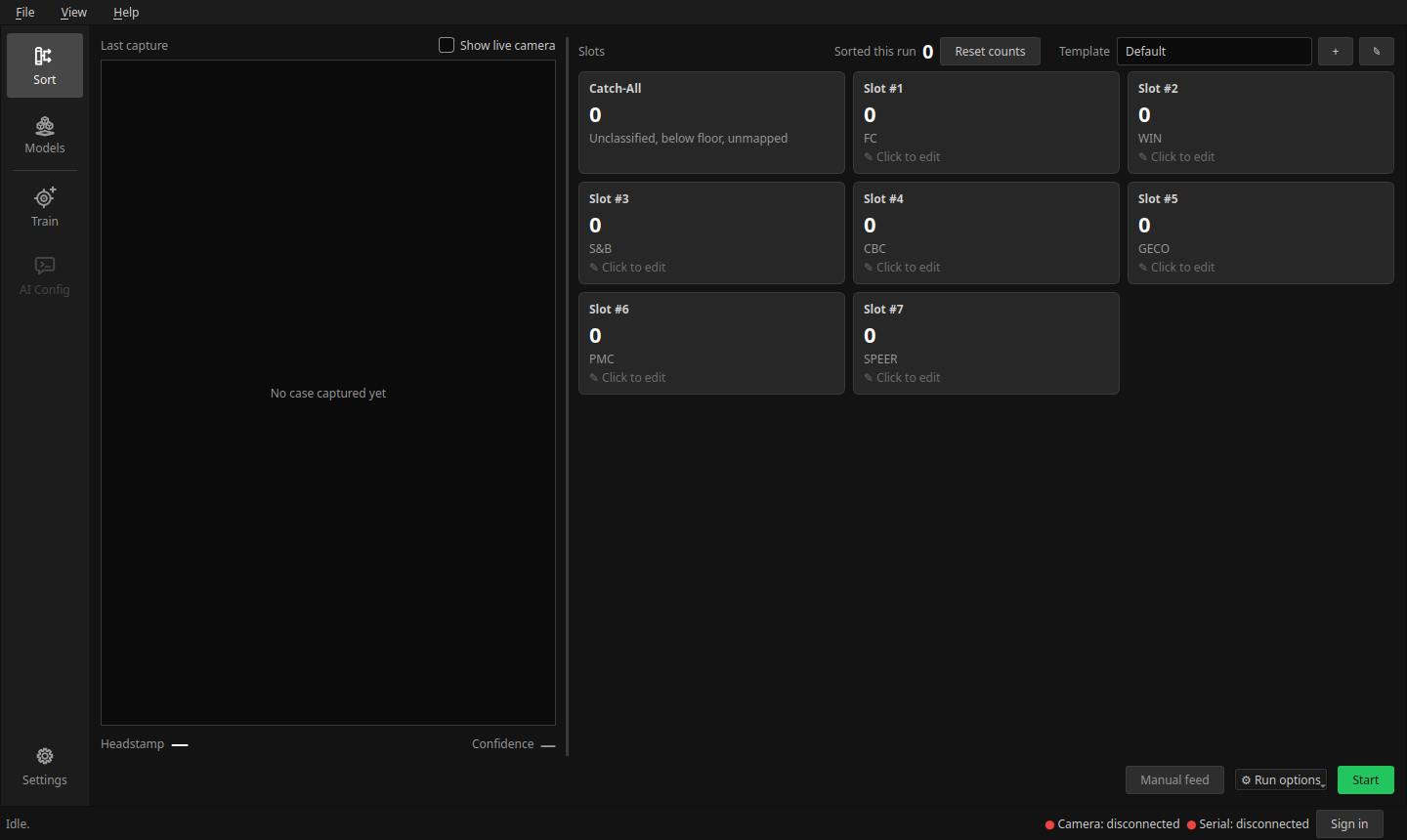
The window is an activity sidebar down the left, a working area, and movable panels you open when you want them.
- Sort — production sorting: the cropped headstamp the classifier saw, a live slot grid with per-headstamp counts, confidence floor, auto-select trays, and package/batch mode.
- Models — model library: create, activate, import/export (ZIP), evaluate, and manage training images.
- Train — feed → capture → classify → label → save, then launch a local ConvNeXt training run.
- AI Config — configure the HTTP classification server and headstamps.
- Community (sign-in required) — browse, search, and download community-published models.
- Settings — Camera, Serial, Image Processing and Theme: device selection, board settings and sort-arm testing, headstamp-crop tuning (Hough circles + primer mask).
- Panels — a serial monitor, a classification history, this project’s user
guide (
F1, and it follows you between screens), and a theme picker. Drag them where you want; View → Re-dock panels puts them back. - Themes — Dark, Light, Sepia, Midnight Blue, Gothic, or Comic Book, applied immediately and remembered. The theme editor starts from the theme you’re on, sets any color you like with a live preview, and saves, renames or exports it as JSON to share (and imports someone else’s).
- A serial emulator so you can run and explore the app with no hardware attached.
Requirements
- Some Python 3 already on your machine, new enough to run
bootstrap.pyitself — it doesn’t need to be the app’s own Python. That one is provisioned separately by uv, which the launch scripts install automatically on first run if it isn’t already present. - Core Python dependencies (installed automatically by the launch scripts): PySide6, pyserial, opencv-python, numpy, Pillow, requests, msal, platformdirs (+ pygrabber on Windows for friendly camera names).
- A webcam for image capture, and the CS7.2 sorter hardware on a serial port for actual sorting (the emulator covers everything else).
- Optional: PyTorch + torchvision for local training/inference — see below.
Install & run
Windows — just want to use it
No git, no Python, no terminal. Download install-windows.bat and
install-windows.ps1 from installer/ into the same folder
and double-click the .bat.
It installs Python if you don’t have it, puts the app in
%LOCALAPPDATA%\Programs\CaseSorter (per-user — no admin rights), and adds a
Start Menu entry. First launch installs dependencies and takes a few minutes.
Updates happen inside the app. When a new release is out, the status bar
shows Update available; once it has downloaded it changes to Restart to
update, and the update is applied the next time you start. You never need to
re-run the installer. Full details in installer/README.md.
The installer is unsigned, so Windows SmartScreen will warn the first time. Choose More info → Run anyway.
From source
The launch scripts install uv if it isn’t already on your machine, use it to fetch the right Python version and sync dependencies from the committed lockfile, then launch the app — all in one step, every time.
Linux / macOS
git clone https://github.com/sjseth/AI-Case-Sorter-Py.git
cd AI-Case-Sorter-Py
./start.sh
On Linux the script may offer to install a few system libraries via sudo —
the one thing uv genuinely can’t provision, since they’re system libraries
rather than Python packages. Pass --auto (or set AUTO_INSTALL=1) to
confirm automatically; it prints a notice first.
| Library | Needed by | Debian/Ubuntu | Fedora | Arch |
|---|---|---|---|---|
| libGL | OpenCV | libgl1 |
mesa-libGL |
libglvnd |
| glib | OpenCV | libglib2.0-0 |
glib2 |
glib2 |
| libxcb-cursor | Qt’s X11 plugin | libxcb-cursor0 |
xcb-util-cursor |
xcb-util-cursor |
The first two are required — the app can’t start without them. The third is not: without it Qt falls back to Wayland, where a floating panel can’t be moved or resized. The launcher only asks about it when you have a display, so a headless run is never prompted.
Windows
git clone https://github.com/sjseth/AI-Case-Sorter-Py.git
cd AI-Case-Sorter-Py
start.bat
Prefer to drive uv yourself, or need to run under a debugger? See
CONTRIBUTING.md — the flags matter, and
getting them wrong makes the app misreport its own version.
Running without hardware
No sorter attached? In Settings → Serial choose the Emulated port. The
emulator mirrors the real board’s protocol so you can exercise the run loop, the
UI, and most workflows without any hardware.
Optional: PyTorch
Local training and local inference need PyTorch. The app will offer to install it
for you (the Install PyTorch dialog), or you can install the ml extra
yourself:
uv sync --extra ml # torch + torchvision
- GPU: an NVIDIA card with compute capability ≥ 8.0 (Ampere / RTX 30-series and newer) is used automatically; older or absent GPUs fall back to CPU, which still works but is slower.
- The two install routes ship different CUDA builds. The in-app dialog
installs CUDA 12.9 wheels on Linux (NVIDIA driver R525+) and CUDA 13.0
wheels on Windows (driver R580+).
uv sync --extra mlinstead resolves from PyPI, whose Linux build is CUDA 13 (driver R580+) and whose Windows build is CPU-only. For GPU use, prefer the in-app dialog — or install the exacttorch==…/torchvision==…pins frompyproject.toml’s[ml]extra yourself from the matching index:uv pip install --index-url https://download.pytorch.org/whl/cu129on Linux,…/whl/cu130on Windows. - AI Config mode needs no PyTorch on the client — inference runs on the server instead.
Where your data lives
Everything the app writes — trained models, training images, settings — lives in one folder, outside the app directory:
| Platform | Location |
|---|---|
| Windows | %LOCALAPPDATA%\CaseSorter |
| Linux | ~/.local/share/CaseSorter (or $XDG_DATA_HOME/CaseSorter) |
| macOS | ~/Library/Application Support/CaseSorter |
<data folder>/
├── config/   casesorter.db (settings/models/headstamps) + msal_cache.bin (token cache)
├── models/<id>/  images · run_images · feedback_images · reports · trainedmodel
└── updates/  staged app update, applied on next launch
Keeping it separate is what makes updating safe — the updater replaces the app folder, and nothing of yours is in it. Delete the folder to reset all state.
Upgrading from an older version? If your data is still in data/ in the
app folder, it’s moved to the new location automatically the first time you
run the app. Nothing to do.
Overrides:
- Set
CASESORTER_DATA_DIRto put the data anywhere you like. - Create an empty
portable.txtnext tobootstrap.pyto keep data in<app>/datainstead — for USB-stick or fully self-contained installs.
Updating
- Installed on Windows via the installer: the app tells you when an update is available and installs it on the next restart.
- Running from a git checkout:
git pullas usual, then just launch the app again —./start.sh/start.batalways run whatever’s currently on disk, so a pull that changesbootstrap.py,start.sh/start.batthemselves, oruv.lock(new/updated dependencies) takes effect on the very next launch with nothing extra to run. The in-app updater is still available, but a source checkout is normally managed with git. - Disable update checks entirely with
CASESORTER_UPDATE_DISABLED=1, or the checkbox in the update dialog.
Development
uv run pytest # ~500 tests covering the non-UI logic
uv run syncs dependencies (including the dev group, which is where pytest
lives) from the committed lockfile before running, so there’s no separate
install step. CI (.github/workflows/build.yml) runs the same suite across a
Python version matrix on every push and PR.
Please run pytest before opening a PR. Most of the UI isn’t covered by automated
tests — smoke-test UI changes by running the app. See CONTRIBUTING.md
for setup and guidelines, and SECURITY.md to report a vulnerability.
Pointing at a local community backend
The community client talks to https://www.reloadingrecipes.com/api and
verifies TLS normally. To develop against a local copy of that backend, copy
.env.example to .env (next to bootstrap.py, or in
data/config/) and set:
| Variable | Purpose |
|---|---|
CASESORTER_API_BASE |
Base URL of the community API, e.g. https://localhost:7043/api. |
CASESORTER_API_CA_BUNDLE |
PEM cert/bundle to trust — the right way to make a local HTTPS dev server verify. |
CASESORTER_API_INSECURE |
1 skips TLS verification. Honoured only when the API base is localhost, so it can’t weaken production traffic. |
Real environment variables take precedence over the .env file, and .env is
gitignored. For an ASP.NET Core dev server, export its certificate with
dotnet dev-certs https --export-path devcert.pem --format PEM --no-password
and point CASESORTER_API_CA_BUNDLE at it.
CONTRIBUTING.md— how to set up, run the tests, and submit changes.CLAUDE.md— architecture map for contributors and AI coding assistants (layers, event bus, module reference, UI surfaces, data layout).RELEASING.md— how a release gets cut, for maintainers.
Using the app
A first run, start to finish — every screen referenced here is described in
Features above, and the full application guide is published at
https://sjseth.github.io/AI-Case-Sorter-Py/ (Getting
Started,
the User Guide — also F1 inside the app — and the
whole thing as a PDF).
-
Launch it.
./start.sh/start.bat/ the Windows installer’s Start Menu entry — see Install & run. First launch takes a couple of minutes while dependencies sync; every launch after that is fast. -
No hardware yet? Skip straight to the emulator. In Settings → Serial, set the port to
Emulated. It mirrors the real board’s protocol, so everything below — camera, classification, sorting — works the same with no sorter or camera attached, aside from what the camera itself would show. -
Connect a camera. Settings → Camera lists detected devices; pick one and confirm you get a live preview. If casings aren’t cropping cleanly, Settings → Image Processing tunes the Hough-circle detection and primer mask against a captured frame, with a before/after preview.
-
Connect the sorter (skip if using the emulator). Settings → Serial connects to the board, exposes its init settings, and has a sort-arm test to confirm slots move correctly before you feed it real cases.
- Choose how to classify. Two modes — see
Two ways to classify for the tradeoffs:
- AI Config — point the AI Config screen at an OpenAI-compatible server (e.g. a local CaseSorter AI Server). No local model, no PyTorch, works immediately.
- Local model — activate one on the Models screen: create your own, download one from Community (sign-in required), or import one from a ZIP. Local inference needs PyTorch — the app offers to install it the first time you need it (see Optional: PyTorch).
-
Assign headstamps to slots. On the Sort screen, each slot card lists the headstamps that route to it — check the ones you want, per slot. Assignments are saved automatically as sorting templates, so you can switch between different bin layouts (e.g. “range brass” vs. “match prep”) for the same model from the template dropdown, without re-checking boxes each time.
-
Test before you commit hardware to it. Test once on the Sort screen feeds and classifies a single case without moving the sort arm or motors — confirms the whole pipeline (camera → crop → classify) end to end. Manual feed does one real feed-and-sort cycle. Start runs the full continuous loop.
-
Watch it work. The Sort screen’s live slot grid updates per-headstamp counts as cases are sorted; the Classification History panel shows a running tile grid of recent classifications with a colour trail. Anything below your confidence floor routes to the catch-all slot instead of guessing.
- Improve the model over time. The Train screen is feed → capture → classify → label → save, building a labeled image set you can use to train a local ConvNeXt model whenever you’re ready — or just keep collecting images while sorting normally (“Sort While Training”).
No hardware, no camera, nothing installed yet? Steps 2 and 5 (emulator + AI Config against a friend’s or your own server) are enough to explore the whole app with zero physical setup.
License
Copyright (C) 2026 SJSeth Solutions
This program is free software: you can redistribute it and/or modify it under the terms of the GNU General Public License as published by the Free Software Foundation, either version 3 of the License, or (at your option) any later version.
It is distributed in the hope that it will be useful, but WITHOUT ANY WARRANTY; without even the implied warranty of MERCHANTABILITY or FITNESS FOR A PARTICULAR PURPOSE. See the GNU General Public License for details. The full text is in LICENSE, or see https://www.gnu.org/licenses/.
Acknowledgements
Part of the SJSeth AI Case Sorter ecosystem. The hardware, firmware, and build guides live in the CS7.2 repository; the local model host lives in AI-Case-Sorter-Server.